Apna Khet Apna Rozgar Scheme Picture Upload Failed? Easy Fix Explained
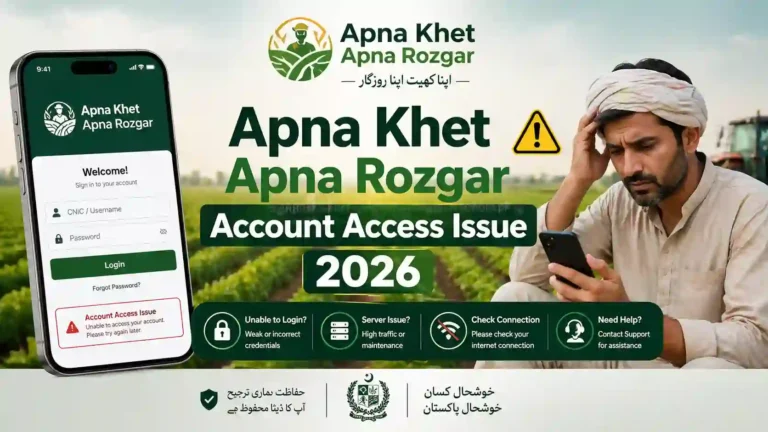
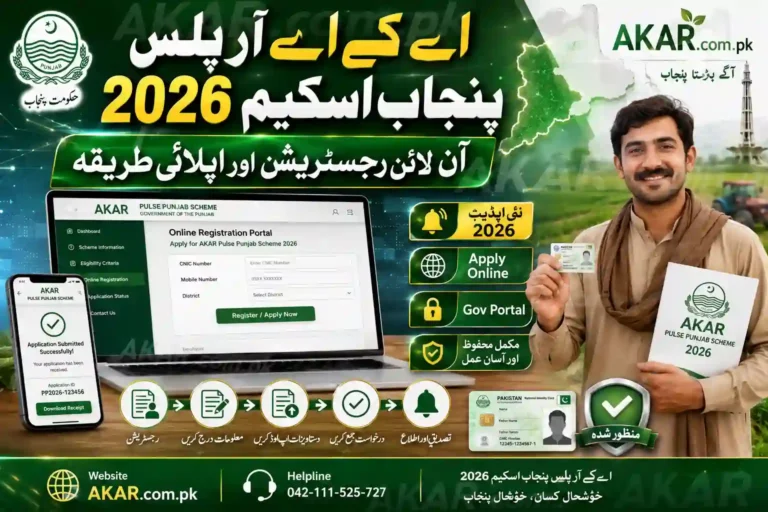
The Government of Punjab launched the Apna Khet Apna Rozgar Scheme to help farmers and unemployed youth apply for agricultural support online. However, many applicants face a common problem during registration — the picture upload failed error. If your photo is not uploading on the portal, don’t worry. This guide explains the easiest solutions to fix the issue quickly.
Whether you are applying through mobile or desktop, this article will help you understand why the upload fails and how to successfully complete your application.

Why Does the Picture Upload Fail in Apna Khet Apna Rozgar Scheme?
Many users experience upload problems because of simple technical mistakes. The portal only accepts specific image sizes and formats. If your image does not meet the requirements, the system automatically rejects it.
Common reasons include:
- Large image file size
- Unsupported image format
- Slow internet connection
- Expired browser cache
- Incorrect image dimensions
- Server traffic on the portal
- Mobile gallery permission issue
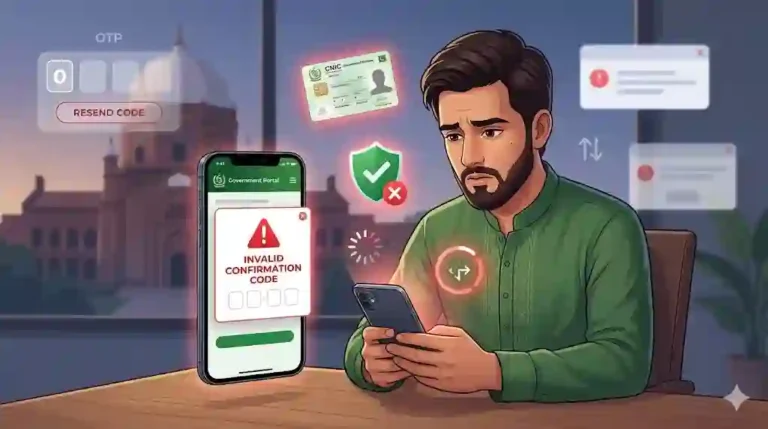
If you are seeing messages like:
- “Picture upload failed”
- “Image not supported”
- “Upload error occurred”
- “File size too large”
then the issue can usually be fixed within minutes.
Check the Required Image Format
Before uploading your picture, make sure your image meets the portal requirements.
Usually, the Apna Khet Apna Rozgar portal accepts:
- JPG or JPEG format
- PNG format
- File size under 1MB
- Clear passport-size photo
Avoid uploading screenshots, edited selfies, or blurry images.
Resize Your Picture Before Uploading
One of the biggest reasons behind upload failure is image size. Modern mobile phones create very large photos that the portal cannot process.
You can easily resize your image using:
- Mobile photo resize apps
- Online image compressor tools
- Built-in gallery editing options
Keep your picture size between 100KB and 500KB for better success.
Use Google Chrome Browser
Some browsers may not support the portal correctly. For best results:
- Use Google Chrome
- Update your browser to the latest version
- Clear browser cache before applying
If the problem continues, try opening the portal in Incognito Mode.
Allow Storage Permissions on Mobile
If you are applying through Android mobile, the browser must have permission to access gallery files.
Follow these steps:
- Open Mobile Settings
- Go to Apps
- Select Chrome Browser
- Open Permissions
- Allow Storage Access
After enabling permissions, reopen the application portal and try again.
Stable Internet Connection is Important
A weak internet connection can interrupt image uploads. Many applicants in rural areas face this issue.
To avoid upload errors:
- Use Wi-Fi if available
- Avoid uploading during low signals
- Wait for full upload completion
- Do not refresh the page while uploading
Even a small interruption can cancel the upload process.
Best Time to Apply on Portal
Sometimes the portal becomes slow due to heavy traffic. Thousands of users apply at the same time, especially near the last date.
The best times to upload documents are:
- Early morning
- Late night
- Non-peak hours
During busy hours, the server may reject files even if the image is correct.
How to Fix “Picture Upload Failed” Error Step by Step
Follow this easy method:
Step 1: Rename the Image File
Rename your file with simple text like:
- photo.jpg
- applicant.jpeg
Avoid special characters or long file names.
Step 2: Compress the Image
Reduce image size below 1MB.
Step 3: Use JPG Format
Convert HEIC or WEBP images into JPG.
Step 4: Clear Browser Cache
Open browser settings and clear:
- Cookies
- Cached images
- History
Step 5: Reopen Portal
Login again and retry upload.
Common Mistakes Applicants Make
Many users unknowingly make these mistakes:
- Uploading CNIC instead of picture
- Using edited beauty filter images
- Uploading blurry photos
- Using unsupported formats like WEBP
- Closing browser during upload
Always double-check your file before submission.
Can You Apply Through Mobile?
Yes, the Apna Khet Apna Rozgar Scheme portal works on mobile devices. However, desktop computers usually provide smoother uploads.
If mobile upload keeps failing:
- Switch to desktop mode
- Use laptop or computer
- Try another browser
This often fixes the issue instantly.
What to Do if Portal Still Does Not Work?
If your picture still does not upload after trying all fixes, then:
- Wait a few hours and retry
- Use another internet connection
- Change your browser
- Try another device
Sometimes the issue is from the server side and automatically gets fixed later.
Benefits of Apna Khet Apna Rozgar Scheme
The scheme aims to support farmers and agricultural workers in Pakistan by providing financial opportunities and machinery support.
Major benefits include:
- Employment support
- Agricultural development
- Tractor and equipment assistance
- Youth empowerment
- Rural economic growth
Because of high demand, many users are applying daily, which can also slow down the portal.
Tips for Successful Application Submission
To avoid future problems:
- Prepare all documents before applying
- Use clear scanned copies
- Upload smaller file sizes
- Use updated browser
- Apply during non-peak hours
Careful preparation increases your chances of smooth submission.
Apna Rozgar Portal Issue Final Words
The Apna Khet Apna Rozgar Scheme Picture Upload Failed issue is usually caused by image size, browser problems, or weak internet connection. Thankfully, the problem is easy to fix if you follow the correct steps.
Make sure your image is in JPG format, under the allowed size, and uploaded through an updated browser. If the portal is busy, wait and try again later.
Thousands of applicants successfully complete their registration every day by following these simple methods. With proper image settings and a stable connection, your application can also be submitted without any errors.