
AKAR Mobile Par Nahi Chal Raha? Desktop Working Method 2026
In 2026, many users report a frustrating issue: AKAR mobile par nahi chal raha or apps not opening properly on their phones. At the same time, users also face problems like phone not connecting to PC, USB only charging, or file transfer not showing.
If you are dealing with these issues, this complete guide will help you understand the causes and provide step-by-step solutions. Whether you want to fix your mobile or switch to a desktop method, everything is covered here in simple English.
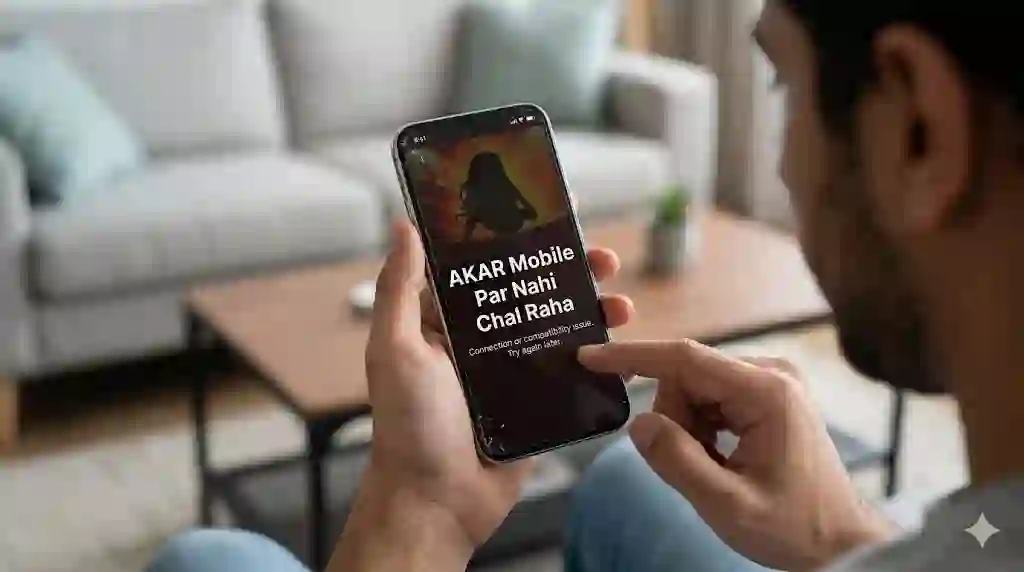
Why AKAR Is Not Working on Mobile?
Before switching to desktop, it’s important to understand why the issue happens.
Common Reasons:
- Weak or unstable internet connection
- Outdated app version
- Phone storage full
- App cache corrupted
- Device compatibility issue
- Temporary server downtime
Quick Fix (Try First):
- Restart your phone
- Update the app
- Clear cache from settings
- Switch WiFi/mobile data
If the issue still continues, the desktop method is the best alternative.
Desktop Working Method (100% Working in 2026)
Using a desktop is the most reliable solution when mobile apps fail.
Method 1: Direct Website Access
- Open Chrome, Edge, or any browser
- Visit AKAR official website
- Login to your account
- Use all features smoothly
👉 This is the fastest and safest method.
Method 2: Android Emulator (Advanced Users)
If AKAR only works as an app:
- Install emulator like:
- BlueStacks
- LD Player
- Nox Player
Steps:
- Download emulator on PC
- Install and open it
- Sign in with Google account
- Install AKAR app
- Use it just like mobile
👉 This method converts your PC into a virtual Android device.
How to Connect Mobile to Desktop (Step-by-Step Guide)
Connecting your phone to PC is easy if done correctly.
USB Connection Method:
- Use original USB cable
- Connect phone to computer
- Unlock your phone
- Select File Transfer (MTP) mode
- Open “This PC”
- Access your phone storage
Why Mobile Is Not Connecting to PC?
This is one of the most common user complaints.
Main Causes:
- Damaged or low-quality USB cable
- Faulty USB port
- Phone is locked
- Missing USB drivers
- Incorrect USB mode
Phone Only Charging When Connected?
If your phone is only charging and not connecting:
Fix:
- Open notification panel on phone
- Tap USB Preferences
- Select File Transfer / MTP
If option is missing:
- Try a different cable
- Use another USB port
- Restart both devices
File Transfer Option Not Showing?
Sometimes the file transfer option doesn’t appear.
Solutions:
- Enable Developer Options
- Turn on USB Debugging
- Update PC USB drivers
- Use original branded cable
Phone Not Recognised by PC (Complete Fix)
If your PC is not detecting your phone:
Steps:
- Open Device Manager
- Update or reinstall USB drivers
- Install official phone drivers
- Restart system
For Samsung users, install:
Samsung Smart Switch
Samsung Phone Not Connecting to Laptop?
Samsung users often face this issue due to software settings.
Fix:
- Install Smart Switch
- Enable USB Debugging
- Use original Samsung cable
- Update phone software
Smart Switch Not Detecting Phone?
Even Smart Switch may fail sometimes.
Try this:
- Reinstall Smart Switch
- Restart devices
- Change USB port
- Check phone permissions
How to Turn Mobile Into Desktop?
Want a desktop-like experience from your phone?
Best Options:
- Enable desktop mode in browser
- Use screen mirroring
- Connect phone to monitor
Samsung DeX allows full desktop experience directly from your phone.
Wireless Connection Methods (No USB)
You can also connect your phone without a cable:
- WiFi file transfer apps
- Bluetooth sharing
- Cloud storage (Google Drive)
- Screen mirroring tools
These methods are useful when USB is not working.
Pro Tips for Smooth Connection (2026)
- Always use original USB cable
- Keep phone unlocked while connecting
- Update phone & PC software
- Install correct drivers
- Avoid cheap cables
- Use trusted apps only
AKAR Not Working On Mobile Final Conclusion
If AKAR mobile par nahi chal raha, switching to a desktop method is the best solution in 2026. You can use a browser or emulator to continue your work without interruption.
Most connection problems like USB not working, phone not recognised, or file transfer missing are easy to fix with simple steps like changing cable, selecting correct USB mode, or updating drivers.
Follow this guide carefully, and you will solve your problem quickly and efficiently.